tick-tock-done Open the app

For restaurant, construction and cleaning crews

The work list your whole crew will tick.

Clock in at the door, see who is on this week, tick the opening checklist and snap a photo when the job is done. One place, on the phone in every pocket, and it keeps working when the signal drops in the cellar or on the third floor.

Get started
  • Clock-in and shifts
  • Photos on every job
  • Works offline
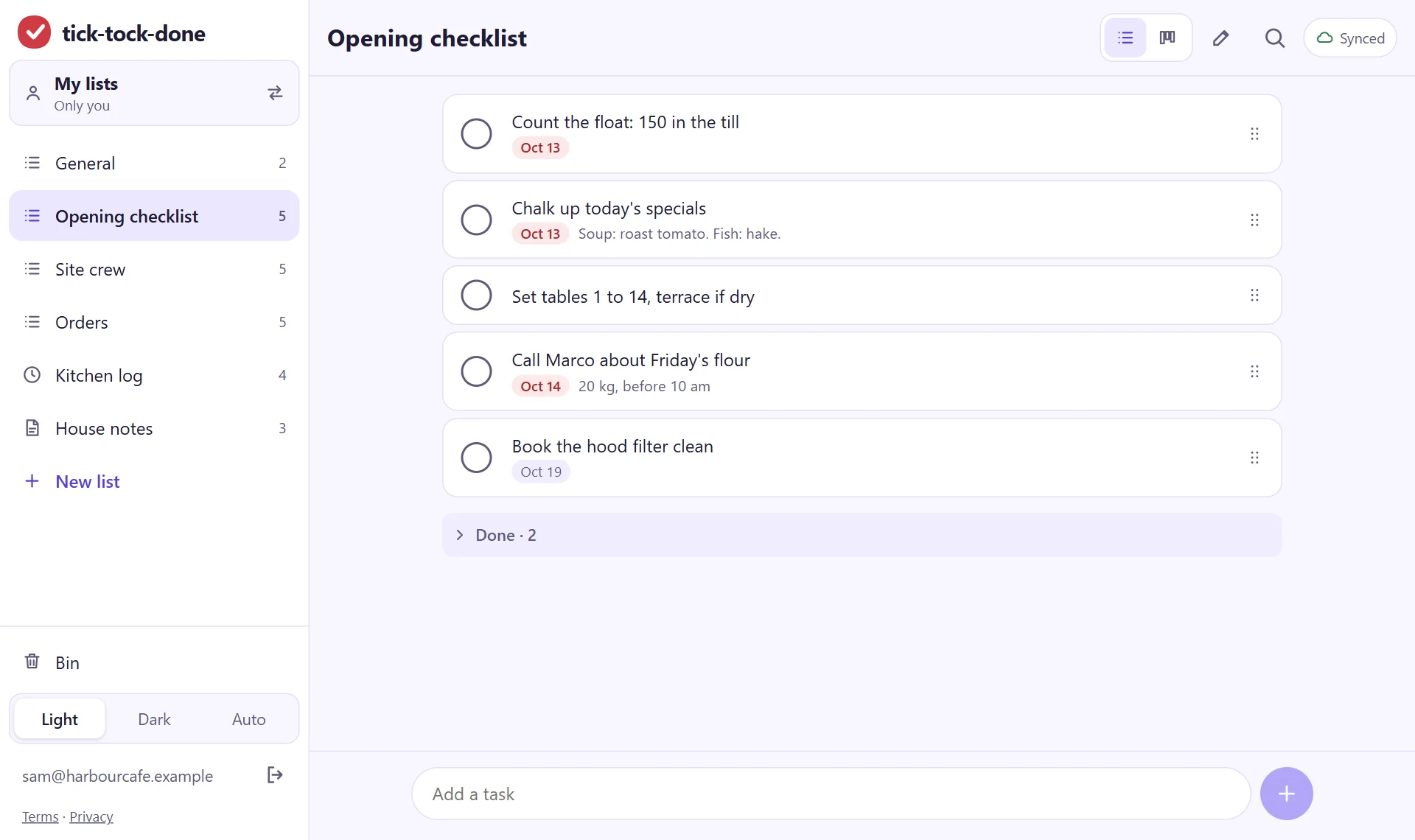
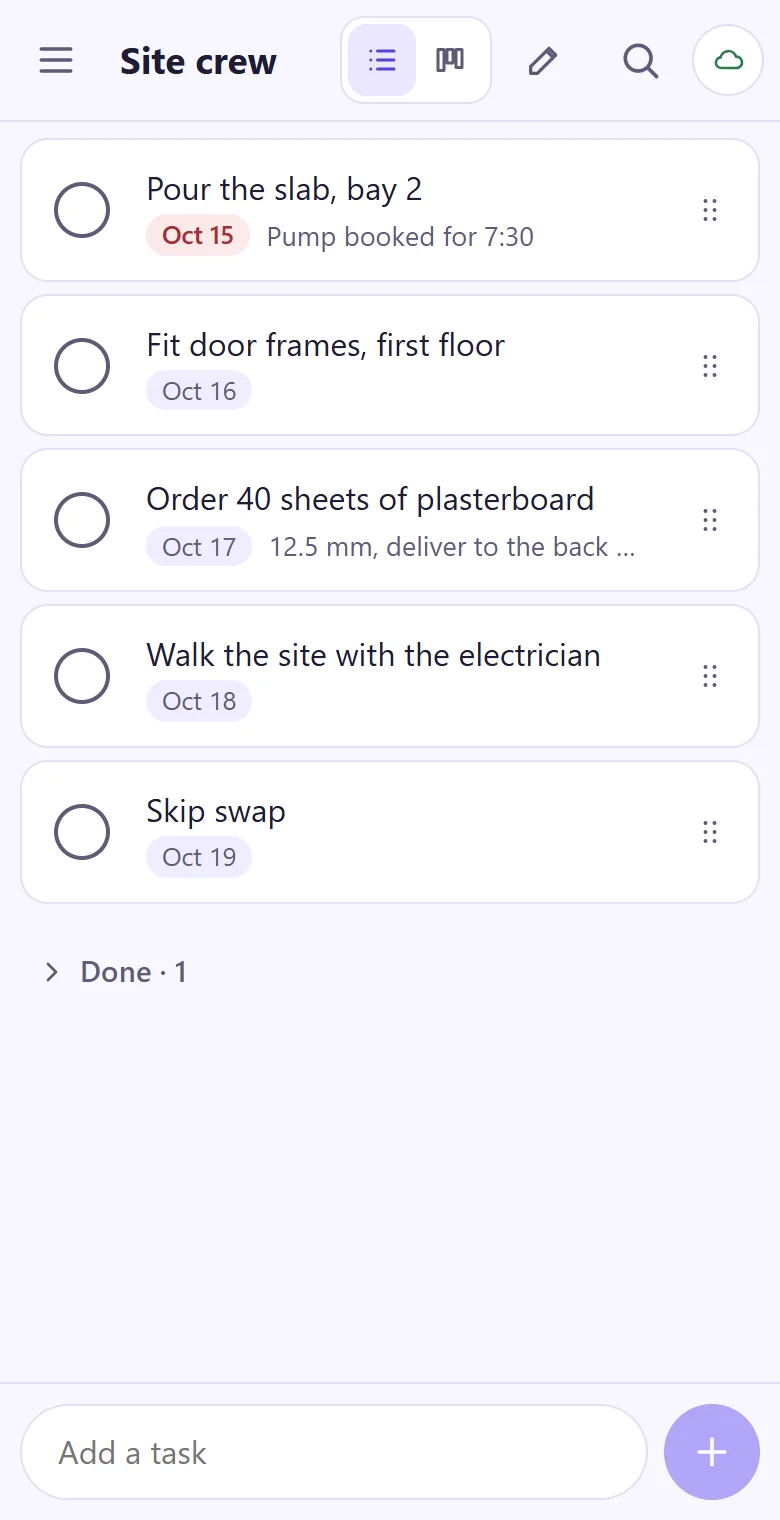
The tick-tock-done app on a laptop: an opening checklist for a cafe with due dates, and lists for the site crew, orders, a kitchen log and house notes The same account on a phone: the site crew's jobs for the week
Two taps to add a job.No boards to design, no fields to fill in first.
Phone first.Big buttons for cold hands and gloves. The laptop view is the bonus.
Small on purpose.Built for a crew of five or fifty, not for a company with a project office.

Three kinds of list. That covers a working day.

Big work platforms start with an empty board and a course on how to use it. Here you name a list, pick its kind and start typing.

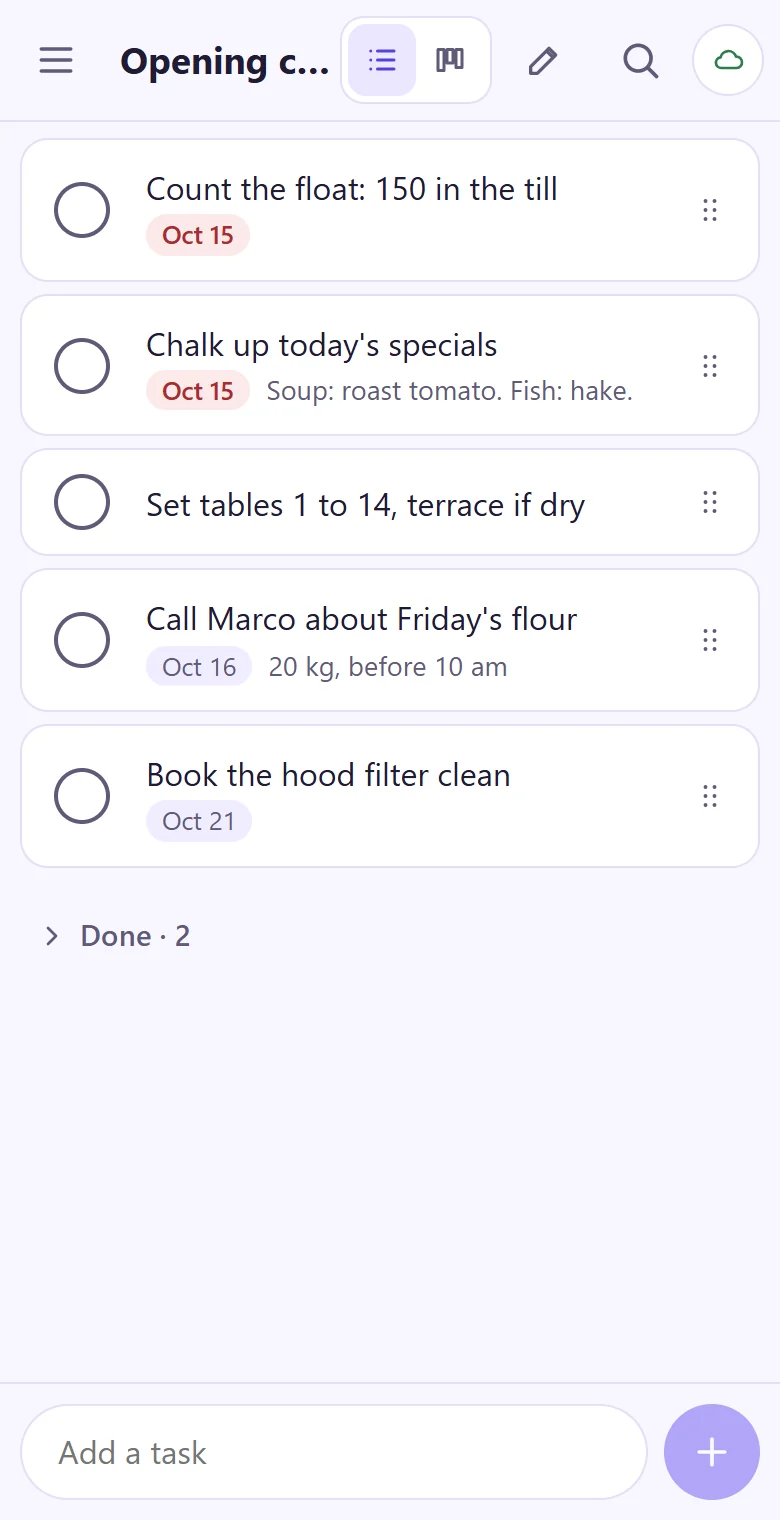
A task list on a phone: an opening checklist with due dates and notes under each job

Tasks

Jobs to tick off, with a note and a due date when they need one. Drag them into the order the day runs in. Done jobs fold away, and nothing is lost: the bin gives it back.
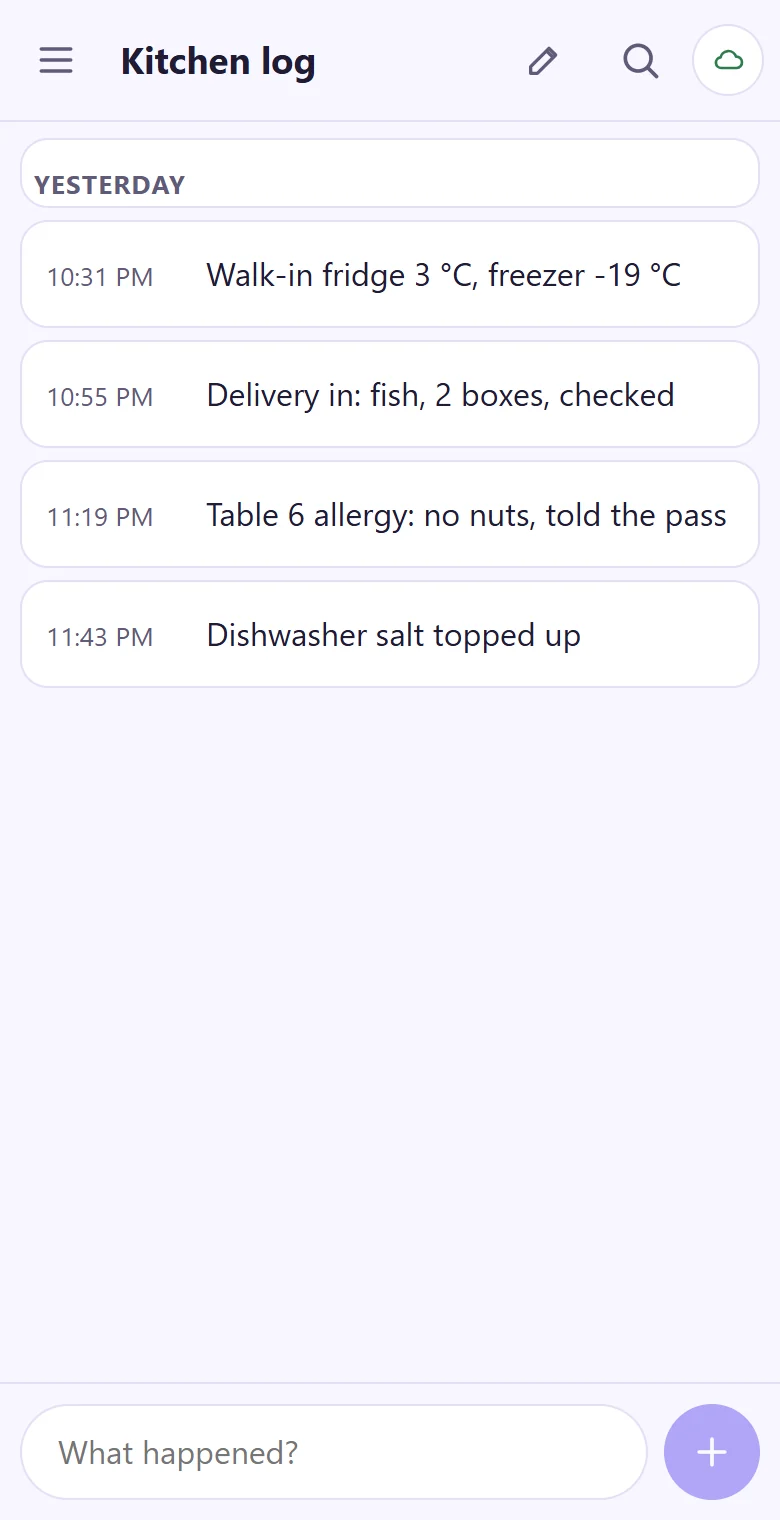
A log list on a phone: fridge temperatures, a delivery and an allergy note, each with its time

Log

What happened and when: fridge temperatures, deliveries, a visitor on site, the thing the next shift has to know. Every line gets its time by itself.
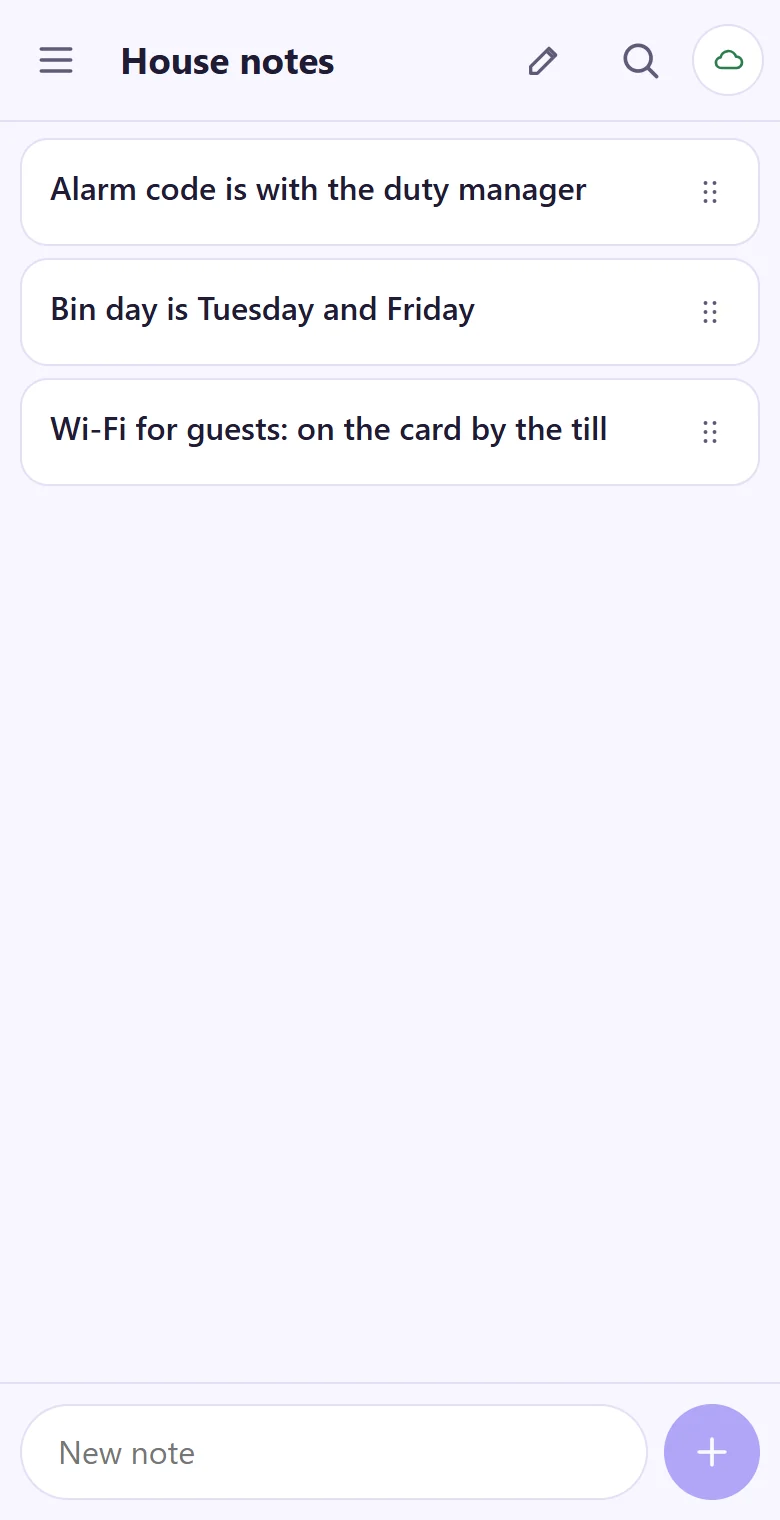
A notes list on a phone: where the alarm code is kept, bin days and the guest Wi-Fi

Notes

The things people keep asking: bin days, who holds the keys, how the coffee machine is cleaned. Search finds a word across every list.

No signal? Keep working.

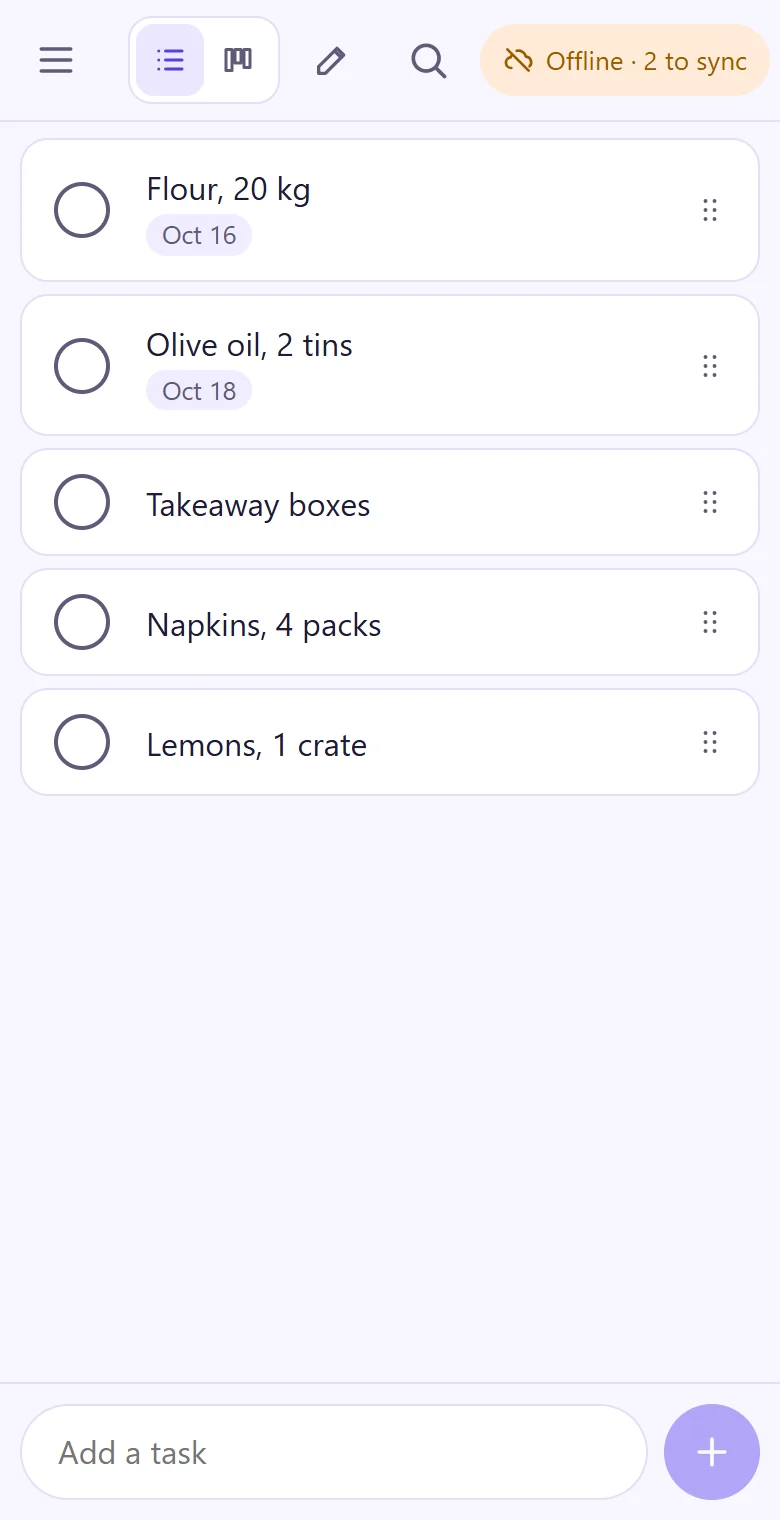
Cellars, cold rooms, lift shafts and half-built floors have no reception. tick-tock-done saves every change on the phone first and sends it when the connection is back. A small label always says where things stand: Synced, Syncing or Offline · 2 to sync.
  • Opens with no connection once it is on the home screen
  • The same lists on your phone, tablet and laptop
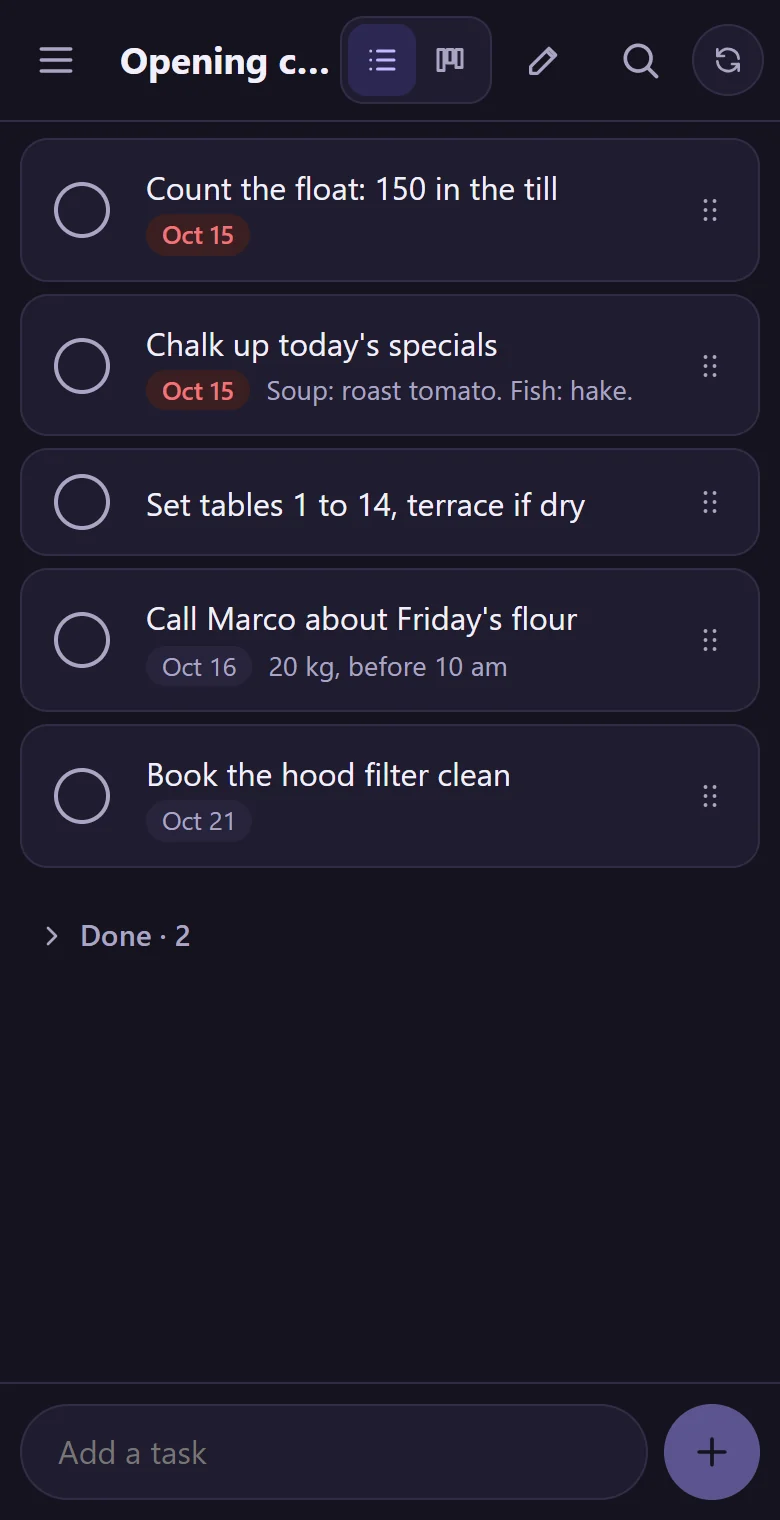
  • Light and dark, for the pass at noon and the yard at dusk
A list on a phone with no connection: two new items wait, and the label reads Offline, 2 to sync The opening checklist in the dark theme

The whole crew on one board

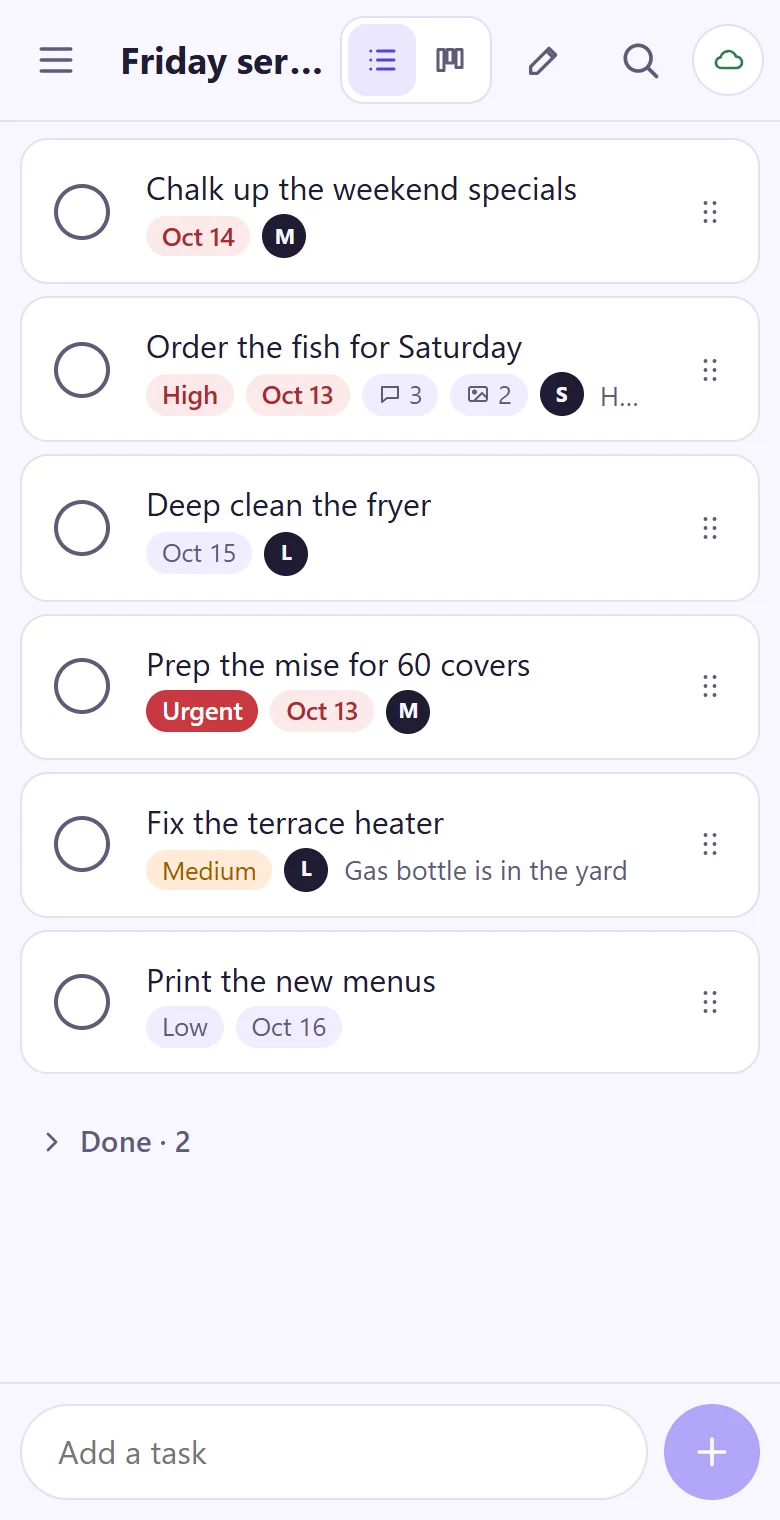
Start a team, read the join code out loud, and everyone has the same lists on their own phone. Give a job to a person, and see at a glance what is waiting, what is moving and what is stuck.
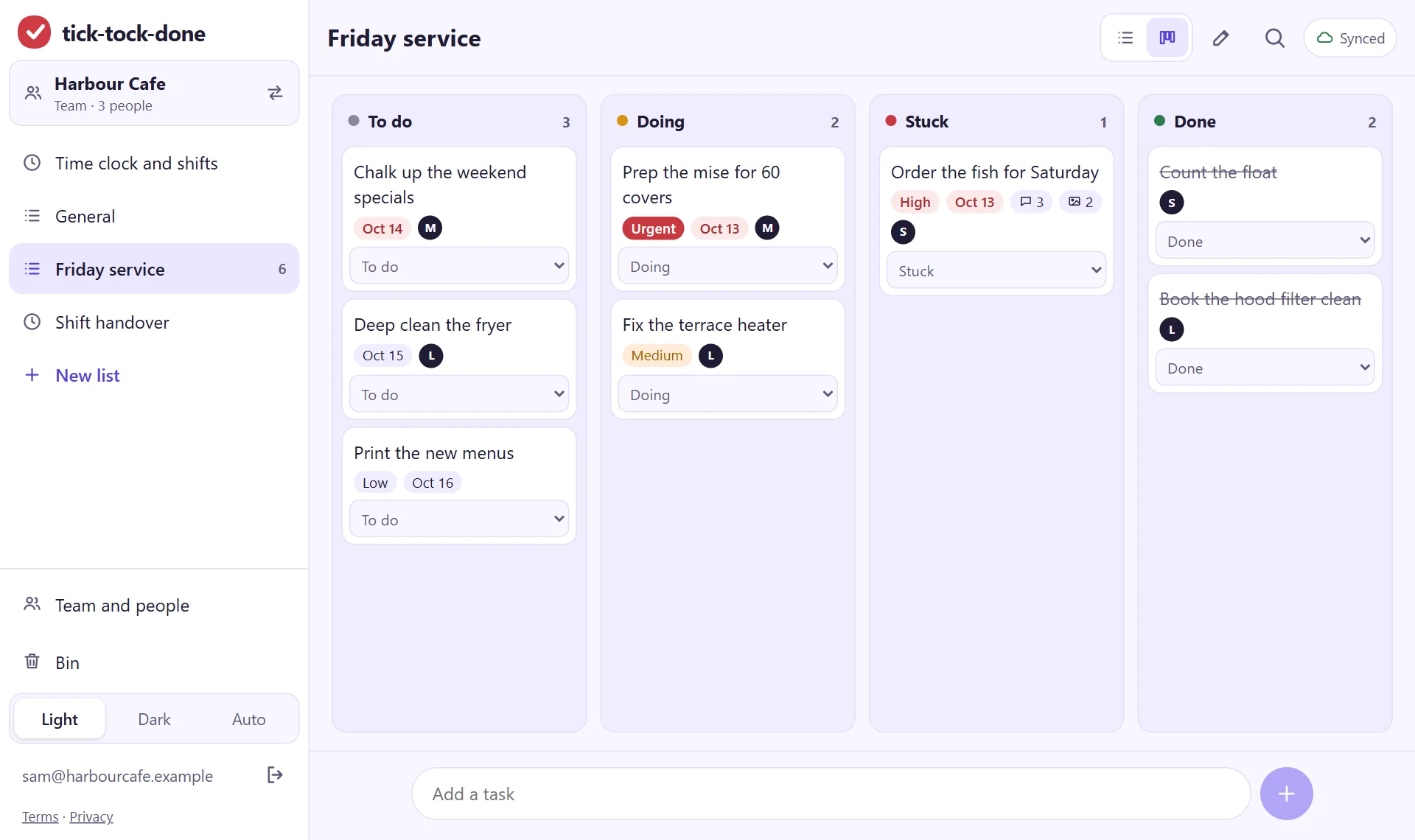
A cafe team's Friday service as a board on a laptop: columns To do, Doing, Stuck and Done, each job with its priority, due date and the initial of the person who has it

Say what happened, on the job itself

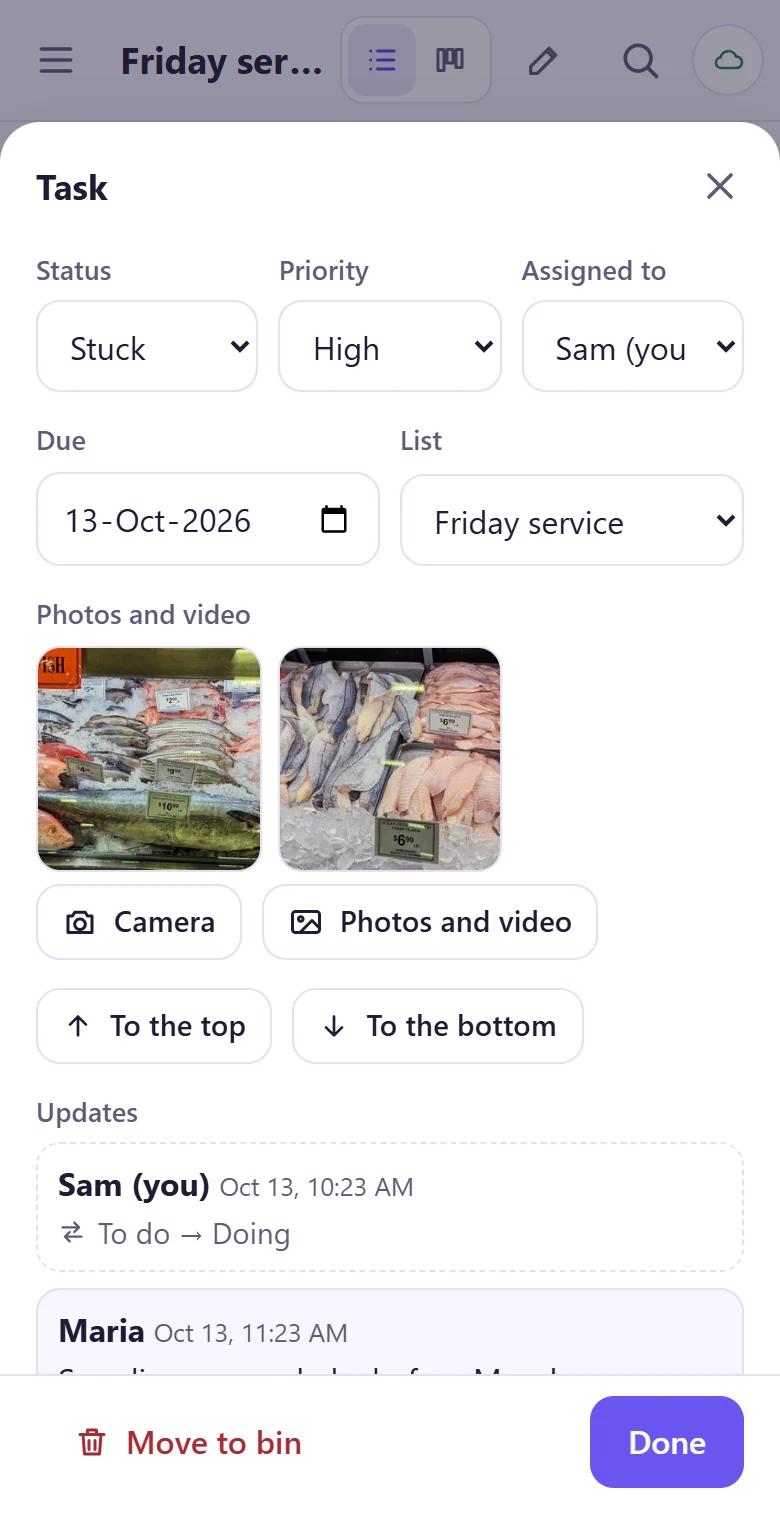
Every job keeps its own short history: who moved it and when, and what people said about it. The next shift reads it there instead of asking around.
  • Columns you can rename: To do, Doing, Stuck, Done, or your own words
  • Join with a code from a phone, or invite by email
  • An owner, managers and members: the crew ticks jobs, the lists stay tidy
  • Your own lists stay yours, next to the team's
The team's list on a phone: each job shows its priority, its due date and who has it One job on a phone: status Stuck, priority High, assigned to Sam, and under it the updates from three people about the fish order

Show it. Don't describe it.

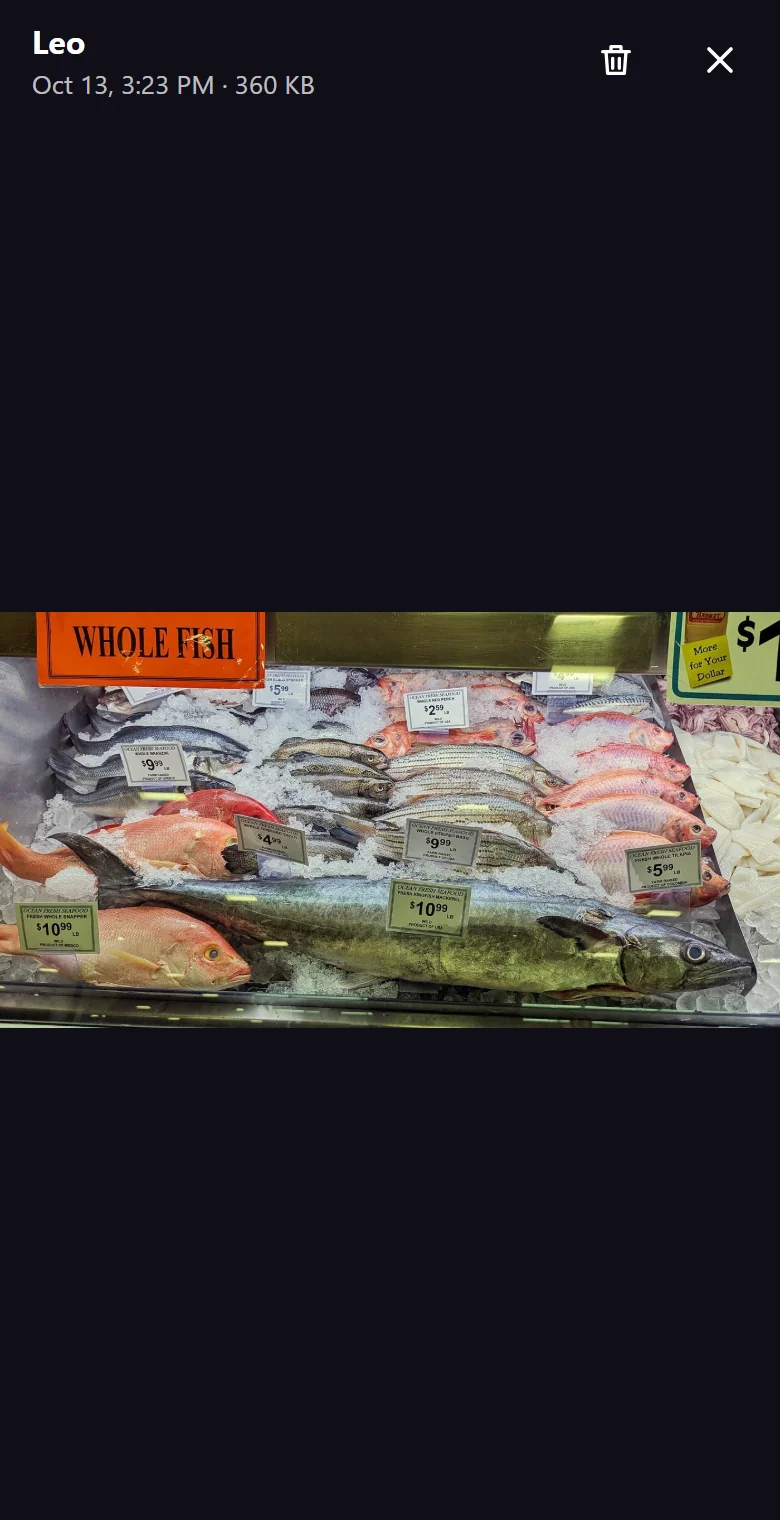
The leak, the finished wall, the delivery note, what the supplier had on the counter this morning. Take the picture from the job itself and everyone on the team sees it there, with who added it and when.
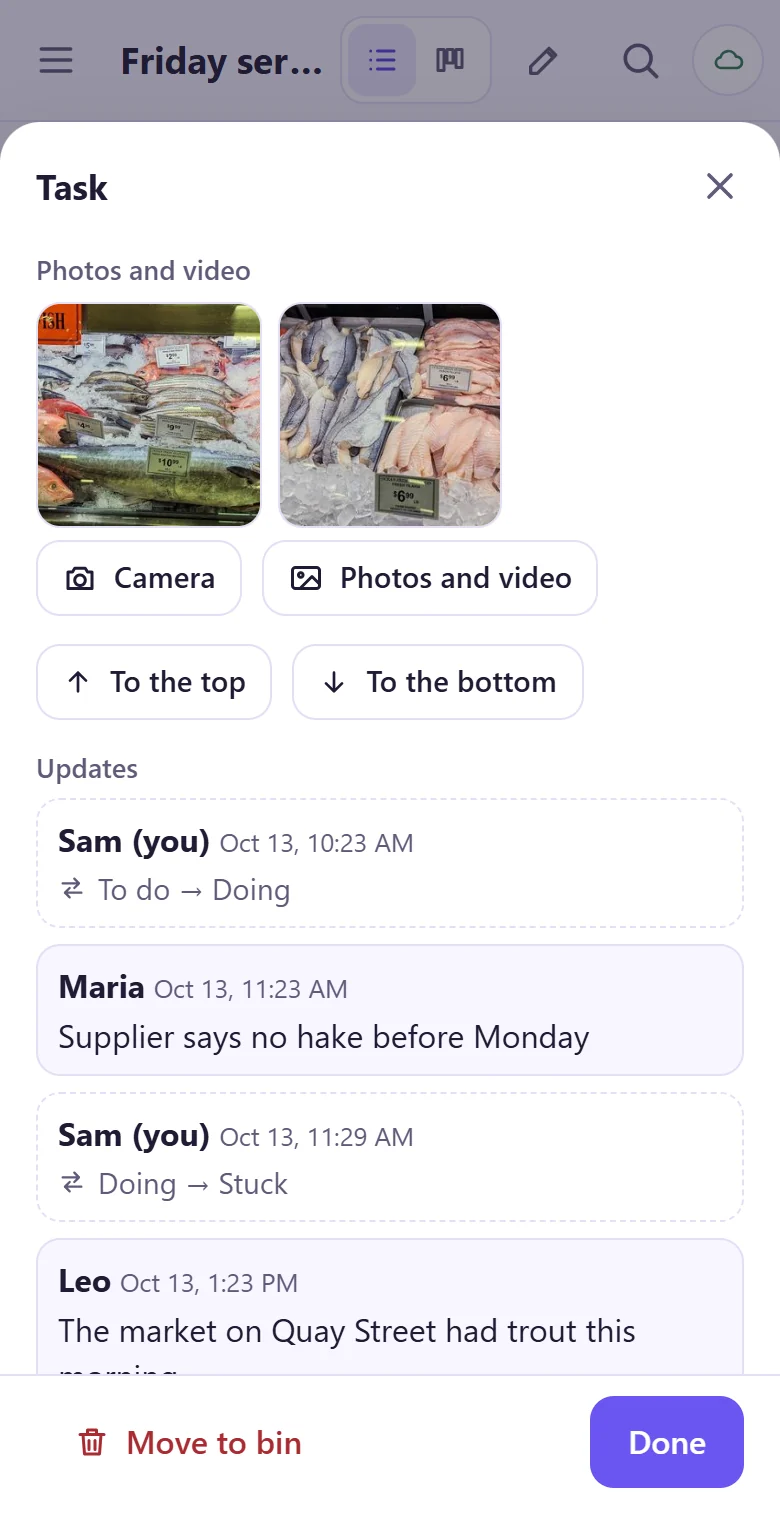
  • Photos and short videos on any job, from the phone's camera or its gallery
  • They sit in the job's history, next to what people said
  • Only the people on the team can open them
  • Photos are made smaller before they are sent, so mobile data lasts
A job on a phone with two photos of a fish counter added to it, and under them the updates: who added each photo and what the team said One of the photos opened on the phone: whole fish on ice with price labels, with the name of the person who added it

Clock in with two taps. Hours ready on payday.

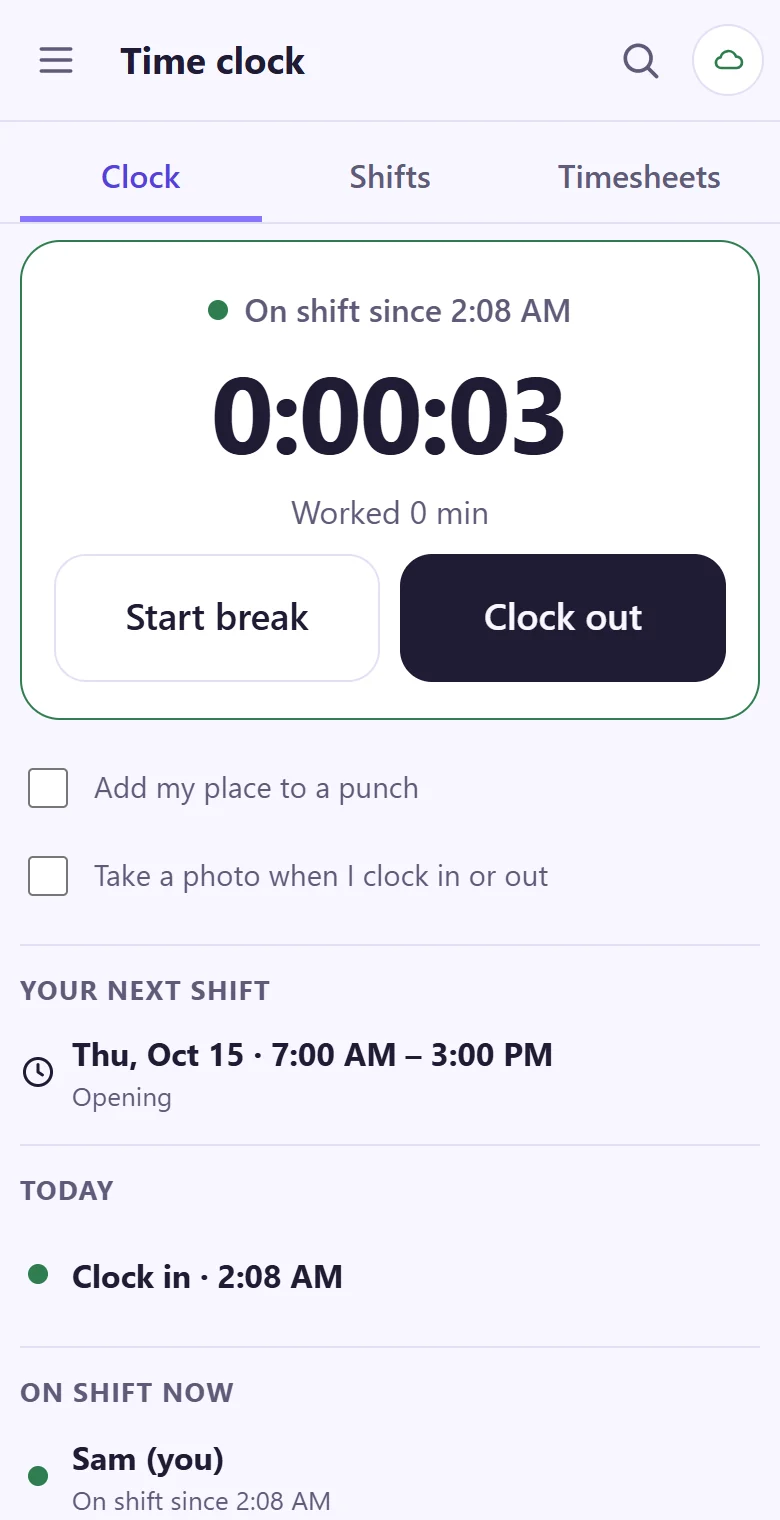
Open the app, tap Clock in. Break, back, out: one tap each. The team sees who is on shift, and the hours add themselves up by person and by week.
  • Works with no signal: the tap is kept with its time and sent when the phone is back online
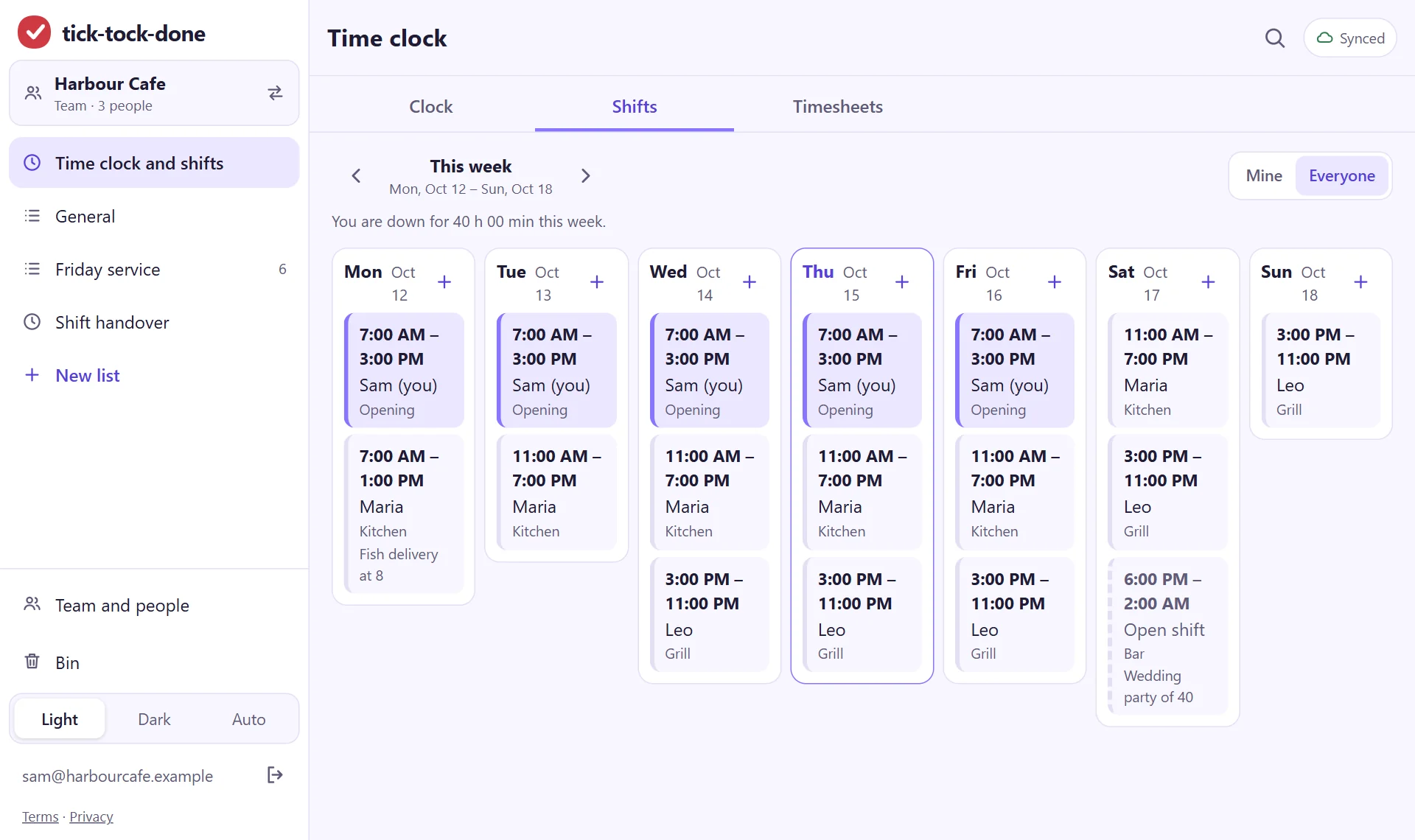
  • A shift plan for the week; everyone sees their own shifts on their phone
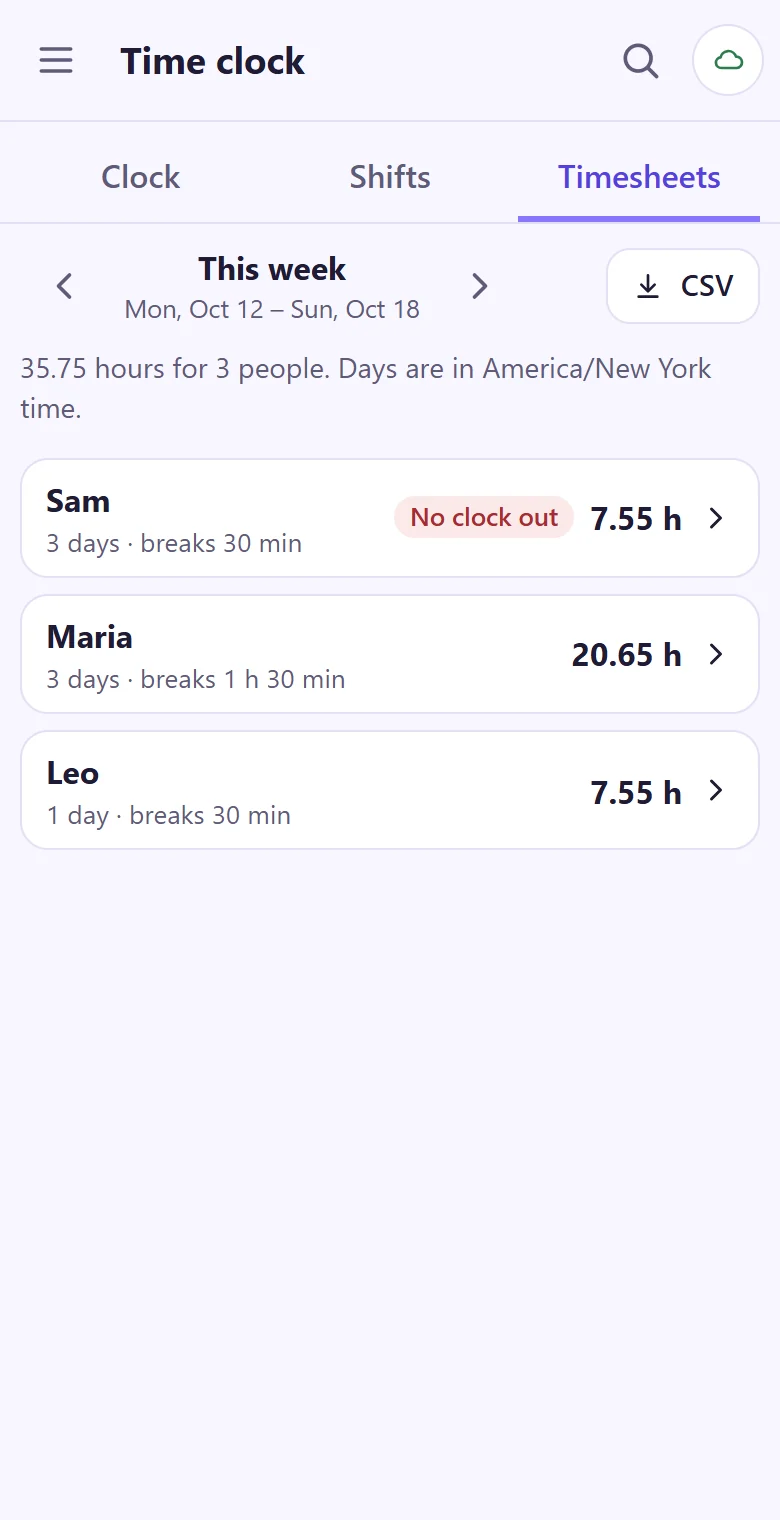
  • Timesheets by person and week, and a CSV file for payroll
  • A forgotten clock-out is fixed by a manager with a reason; the first tap stays on record
  • A place or a photo with the tap, when a person turns it on
The time clock on a phone: on shift since this afternoon, buttons to start a break and to clock out, and the people of the team who are on shift now The week's timesheet on a phone as the owner sees it: hours for each of the three people, with a button for the CSV file
A cafe's shift plan for the week on a laptop: seven days side by side, with who opens, who is in the kitchen and at the grill, and an open bar shift on Saturday

Made for the people who do the work

Most task software is drawn for people at desks. These three crews are who we draw for first.
Restaurants, cafes and bars

  • Opening and closing checklists, in the order the shift runs
  • A kitchen log for temperatures, deliveries and allergy notes
  • Supplier orders, written down the moment the shelf looks empty
  • A handover note for the next shift, with the time on it
  • The week's rota on every phone, and a clock-in at the door

More for restaurants

Construction and trade crews

  • The week's jobs by site, in the order they have to happen
  • Materials to order, with sizes and where to drop them
  • A site log: who came, what was checked, what was signed off
  • Works where the building has no reception yet, the time clock too
  • Hours by person and week, ready for payroll

More for construction crews

Cleaning crews

  • A checklist for each place you clean, room by room
  • A photo on the job when it's done, for the client or the next visit
  • Notes on keys, alarm codes and where the supplies are kept
  • Clock in at the door, even in a basement with no signal
  • The week's rounds on every phone, and the hours for payroll
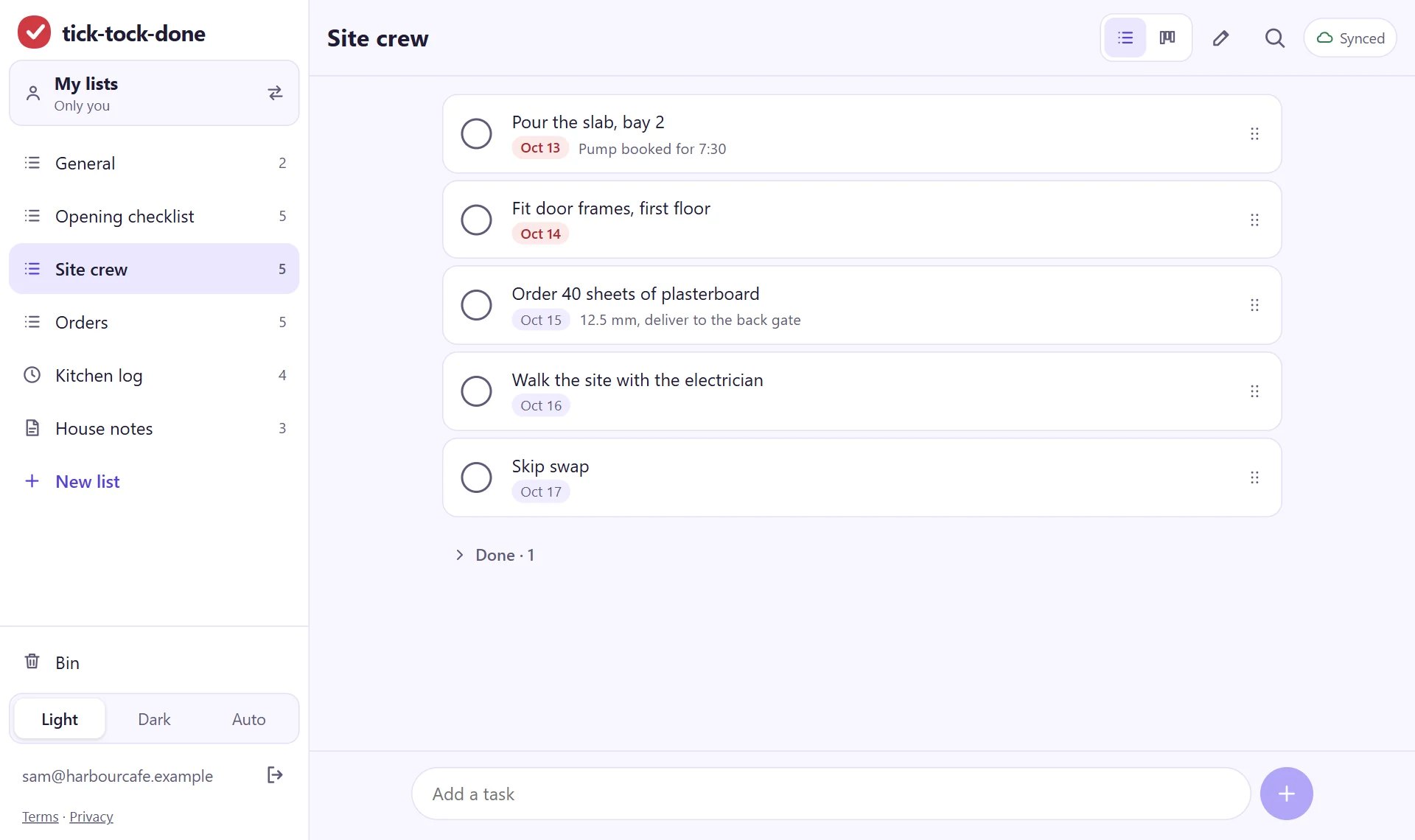
A site crew's list on a laptop: pour the slab, fit door frames, order plasterboard, walk the site with the electrician

Say it, don't type it.

Hands full, gloves on, phone in your pocket? Open tick-tock-done Say, tap the one big button and say the job: "order napkins for Sam Friday 10am, kitchen list". It lands in the right list, with the time and the person.
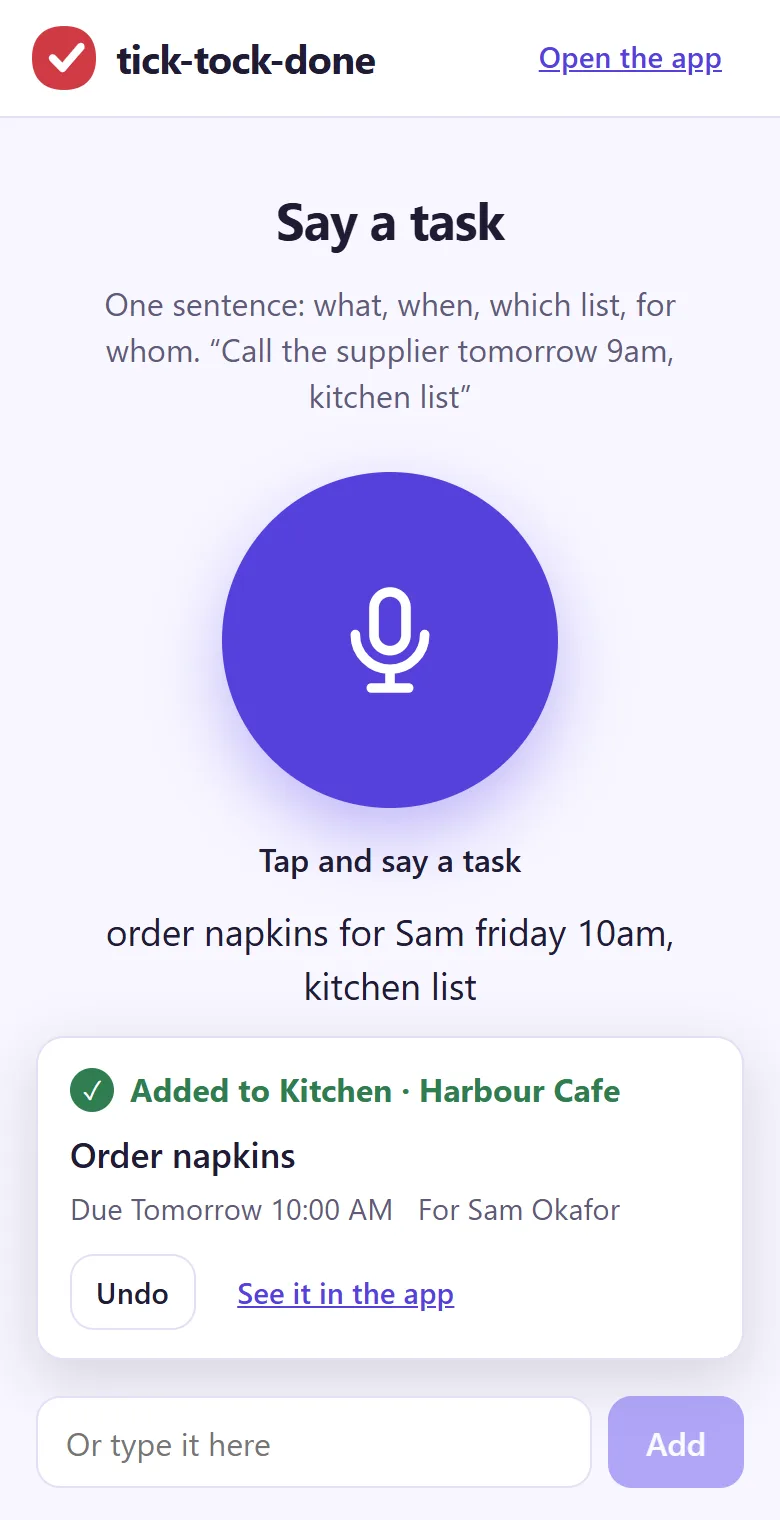
  • Name the list, the day, the time and who it is for, in one sentence
  • Works in your own lists and in your team's
  • Undo with one tap if it heard you wrong
  • No signal? The sentence waits on the phone and goes in when you are back online
  • Installs as its own app on Android, iPhone, Windows, Mac and Linux
tick-tock-done Say on a phone: one big microphone button, the sentence that was heard, and the job it added to the cafe's kitchen list for Sam, due tomorrow at 10

Put today's first job on the list.

It takes about a minute: your email, a code, and you're typing.

Get started